Cast your vote
Your ballot opens directly in your browser with no account or installation needed. This page walks through every step from opening your link to receiving your vote receipt. Read through it once before you begin so you know what to expect, particularly at the confirmation stage where your vote becomes final.
1. Open your voting link
Click the link in the email or SMS you received from Electobox. This opens your ballot directly in a new browser window or tab. There is no separate login page and no account needed.
If clicking the link does not work, try copying the full URL and pasting it directly into your browser's address bar. Make sure you copy the entire link, as some email clients break long URLs across multiple lines.
Your link is personal and one time use. Do not share it with anyone. Once you have voted, the link is permanently deactivated and cannot be used again.
2. Verify your identity
Depending on how your election has been configured, you may be asked to verify your identity before your ballot appears. This step protects against someone other than you using your voting link.
The most common form of verification is a one time code sent to your email address or phone number. When the page prompts you, check your email or SMS for a short numeric code, enter it in the field provided, and click to confirm. These codes expire after a few minutes, so use it promptly. If the code does not arrive within a minute or two, check your spam folder, then use the resend option on the page.
Some elections use a different verification method, such as asking you to confirm a piece of information from your profile like your last name. If this applies to your election, the page will tell you clearly what to provide.
If your election does not require any additional verification, you will skip this step entirely and go straight to the election page.
3. Election dashboard
After any required verification, you will land on the election page. This page shows the election name, a description of what the election covers, the start time, and the current status. It is worth reading the description here if you are not already familiar with what you are voting on, as the contest pages may not always include full background context.

When you are ready to begin, click Cast Vote. If your election has multiple voting sessions and you are eligible for more than one, you will see each session listed here. Work through each one that applies to you.
4. Make your selections
Your ballot contains one or more contests. A contest is a single question or election you are being asked to decide. Each contest uses a specific voting method, and the instructions for each are shown on the page. The three methods you may encounter are described below.
Plurality — select one or more candidates
Plurality is the most straightforward method. You click on the candidate or option you want to vote for to select them. The selected candidate is highlighted to confirm your choice. Click the same candidate again to deselect them if you change your mind.
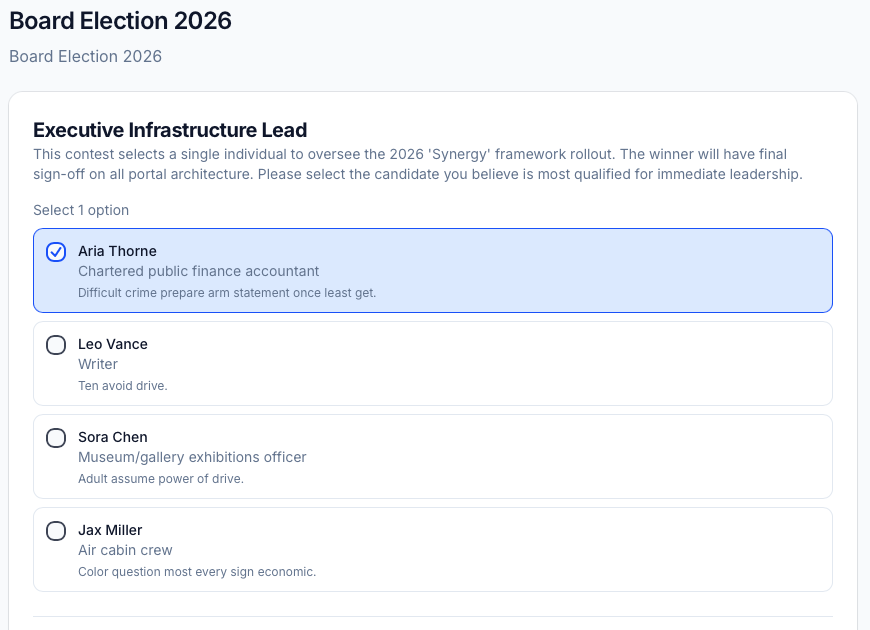
Each contest shows you how many options you need to select, for example "Select 1 option" or "Select up to 3 options." You must meet the minimum selection requirement before you can proceed to the next contest. If you try to move on without making the required number of selections, the page will remind you.
Some plurality contests are set up as simple yes or no decisions or approve and reject choices. These work the same way: click your choice to select it.
Preferential — rank candidates in order
Preferential voting asks you to rank the candidates rather than simply picking one. Use the dropdown menu next to each candidate to assign a ranking number. Give your most preferred candidate a rank of 1, your second choice a rank of 2, and so on.
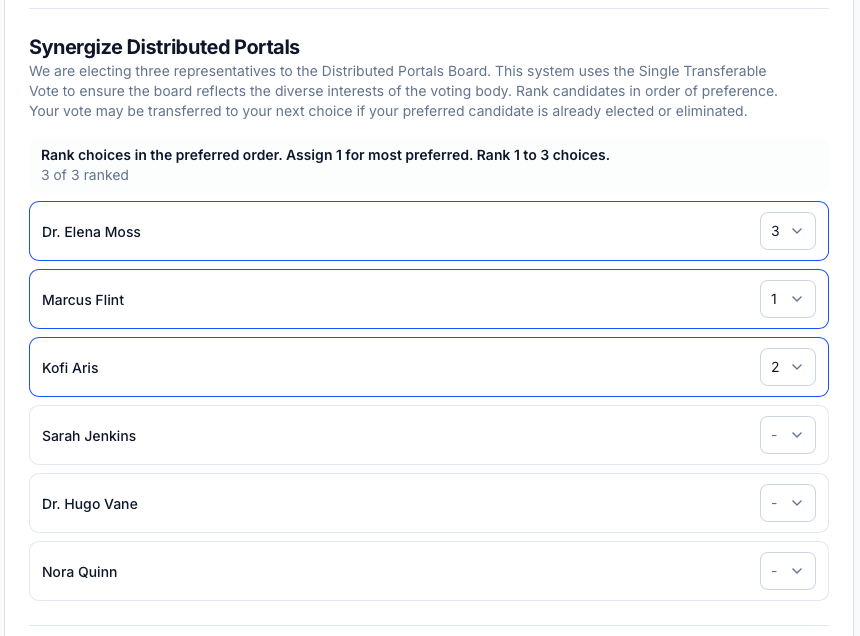
The contest will tell you how many candidates you need to rank, for example "Rank 1 to 3 choices." You only need to rank the required number of candidates. You are not required to rank everyone on the list if you have no preference among the remaining options.
Be careful not to assign the same rank number to more than one candidate. Each rank can only be used once, and the page will alert you if there is a conflict before you are allowed to proceed.
Score — rate candidates with a score
Score voting asks you to rate each candidate on a numeric scale rather than selecting or ranking them. Use the dropdown next to each candidate to assign a score. Unlike preferential voting, you are allowed to give the same score to multiple candidates, which is useful if you support two candidates equally.
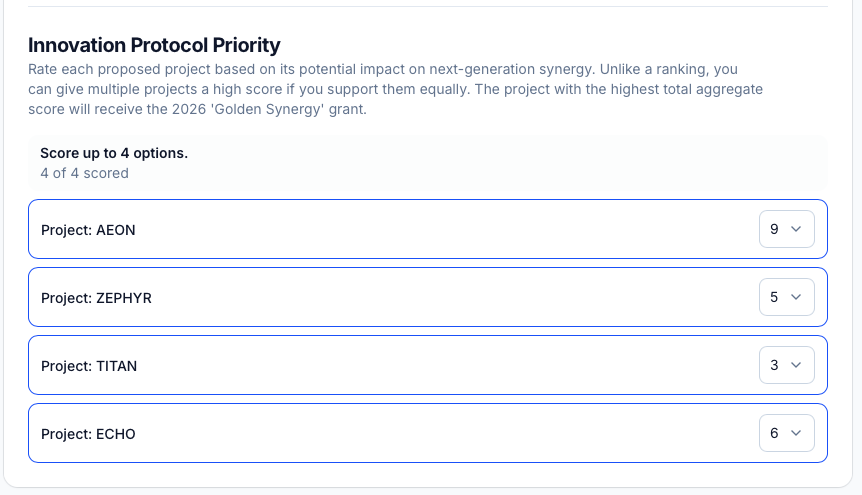
The contest shows how many options you are asked to score, for example "Score up to 4 options." If you have no opinion on a candidate, you can leave them unscored. Only candidates you actively score will be included in the tally for your ballot.
5. Other vote options
If your election allows it, you will see an Other Vote Options button at the bottom of the ballot. This gives you access to special choices that go beyond selecting a candidate.
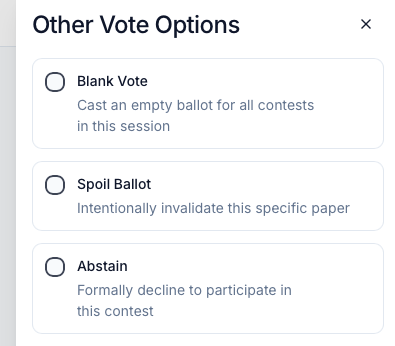
| Option | What it means |
|---|---|
| Blank Vote | Cast an empty ballot for all contests in this session, registering your participation without selecting any candidate |
| Spoil Ballot | Intentionally invalidate this specific ballot to formally signal dissatisfaction with the available options |
| Abstain | Formally decline to participate in this contest while still submitting your ballot for other contests in the session |
These options are only available if your election administrator has enabled them. If you do not see the Other Vote Options button, they have not been configured for this session.
Each of these choices is recorded and reported separately in the results, so they are meaningful formal acts rather than simply leaving a contest blank.
6. Review and cast vote
Once you have made your selections in all contests, click Review & Cast Vote at the bottom of the page. This does not submit your vote yet. It takes you to a summary screen first.
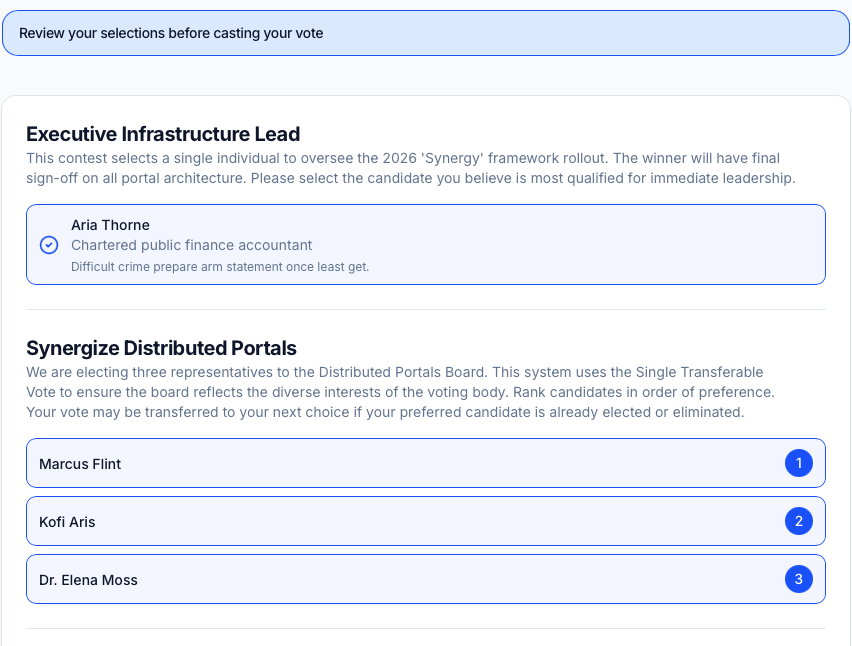
The summary screen shows every contest in your ballot alongside your selections, exactly as they will be recorded. Go through each one carefully. Check that every selection reflects your actual intention, that rankings are in the right order, and that no contest has been missed.
If anything is not quite right, click Change Vote to return to the ballot and make corrections. You can go back and edit as many times as you need before finalizing. There is no time pressure at this stage.

When you are satisfied that every selection is correct, click Confirm & Cast Vote to proceed to the final step.
7. Last confirmation

A final dialog appears asking you to confirm one last time before your vote is submitted:
Last Confirmation You are about to cast your vote digitally. After you cast it you cannot change it.
This is your last opportunity to go back. If you have any doubt about your selections, click Change Vote to return to the ballot. Take as long as you need.
When you are certain your selections are correct, click Cast Final Vote to submit.
8. Vote recorded
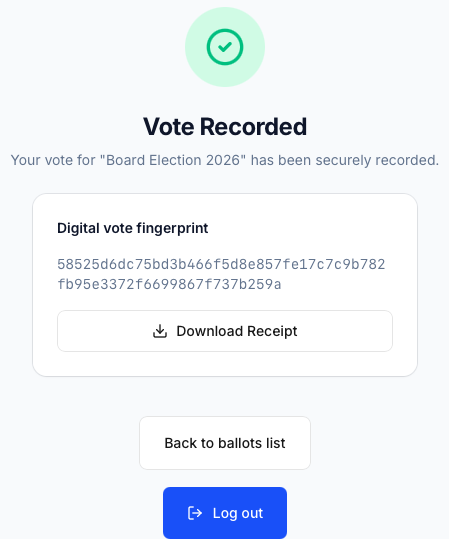
After submitting, you will see the confirmation screen:
Vote Recorded Your vote for "[Election name]" has been securely recorded.
Your vote has been encrypted and submitted to the system. Your voting link is immediately and permanently deactivated at this point. The ballot you just cast is now locked in the system and cannot be altered by anyone.
On this screen you will also see your Digital vote fingerprint — a unique cryptographic hash that identifies your encrypted ballot. This fingerprint is your personal proof of participation. Click Download Receipt to save a copy of it. You can use this receipt later to independently verify that your ballot is included in the final tally, as part of Electobox's end to end verifiability features.
From here you can click Back to ballots list to return to the election page if there are other sessions you need to complete, or Log out to end your session.
Your vote is final
Once you click Cast Final Vote, your vote is permanent. It cannot be changed, withdrawn, or retracted under any circumstances. Your voting link is deactivated the instant your ballot is submitted, ensuring that each person votes exactly once. This is a core part of how the system protects the integrity of the election.
This is why the review screen and the final confirmation dialog exist. Use them. Do not rush through the confirmation steps.
If something goes wrong mid vote
If your browser crashes, the page freezes, or your connection drops before you click Cast Final Vote, your vote has not been submitted. Nothing you do before clicking that final button is recorded as a cast vote. Simply click your voting link again to start a fresh session. Your previous unsubmitted attempt will not count and will not affect your ability to vote.
If you reach the vote recorded screen and see an error or an unexpected message instead of the confirmation, take a screenshot and contact your election administrator with details of what happened, which device and browser you were using, and approximately what time the issue occurred. They can check whether your vote was received and advise on next steps.