Decrypt votes
After the election closes, you will receive an email from Electobox with a secure link to perform your portion of the decryption. This is your second and final task as a trustee. Without your participation specifically, without your private key file the election results cannot be produced. Every trustee must complete this step before the final tally can be revealed.
Before you begin, locate your private key file. It is the trustee-key.json file you downloaded during the key generation step. You will need to upload it during this process. If you stored it on a USB drive as recommended, have that drive plugged in and ready. If you stored it in a folder on your computer, know where that folder is before you start.
The decryption process is computationally heavier than key generation depending on the number of ballots and votes cast, it can take several minutes. During this time, your browser is doing real work, so it is important not to close or navigate away from the page. The guide below explains each step in full.
Use Google Chrome on a desktop or laptop with a stable internet connection. Close other tabs and heavy applications before starting to give your browser the best performance. Make sure your computer is plugged in or has sufficient battery to run for the duration of the process.
Step 1 Upload private key
When you open the decryption link from your email, you are taken to the first page of the decryption flow. The page confirms that the election has closed and that your action is required.
Action required: Your private key is needed Voting has ended. To compute the official tally we need every trustee to contribute their share of the decryption. Please load the private key file you saved during the setup flow to begin.
The page also shows a summary of how the decryption process works, so you know what your browser is about to do:
How decryption works: Encrypted votes are first anonymized through a verifiable mixnet, which shuffles and re-encrypts the ballots so that no vote can be traced back to a specific voter Each trustee then uses their private key to partially decrypt the anonymized votes The partial decryptions from all trustees are combined by the system to reveal the final tally At no point during this process does your private key leave your device
What you'll do in this session:
- Upload the private key file you saved during setup
- Allow your browser to process each ballot's batches of encrypted votes
- Confirm completion so the system can move on to combining all partial decryptions
Without your private key, the election results cannot be decrypted. There is no backdoor, no master key held by Electobox, and no recovery option. If you cannot locate your key file, contact your administrator immediately.
To proceed, click in the upload area or drag and drop your trustee-key.json file onto it. Once selected, click Verify Key File.
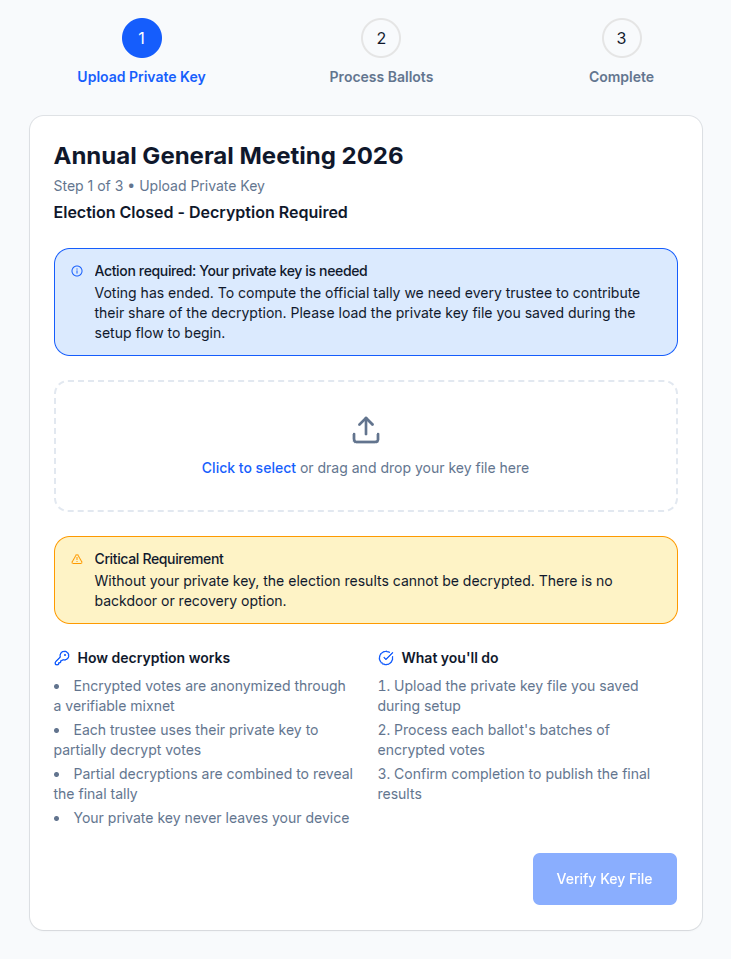
Electobox will check that the file you uploaded is the correct key for this election specifically, that it cryptographically matches the public key you registered during setup. If you are uploading the right file, this check passes instantly.
If the verification is successful, you will see:
Key file verified Your private key file matches the public key on record. You can now begin the decryption process.
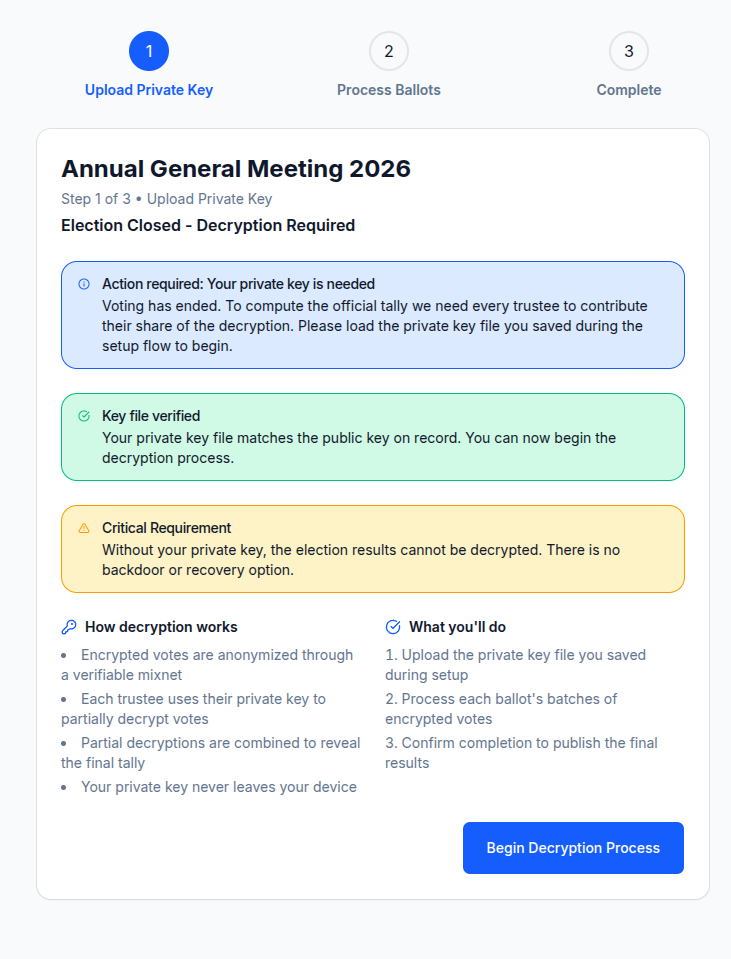
Click Begin Decryption Process to move to the next step. If verification fails, see the troubleshooting section below.
Step 2 Process ballots
This is the main computational step. The page shows a list of all the ballots in the election that need to be decrypted. Each ballot starts at 0% and must reach 100% before you can proceed.
Decryption runs entirely in your browser. If you reload the page, navigate away, or close the tab while a ballot is being processed, that ballot's progress will be lost and you will need to restart it from 0%. Your overall progress is not lost completed ballots stay complete but any ballot interrupted mid-process will need to be restarted.
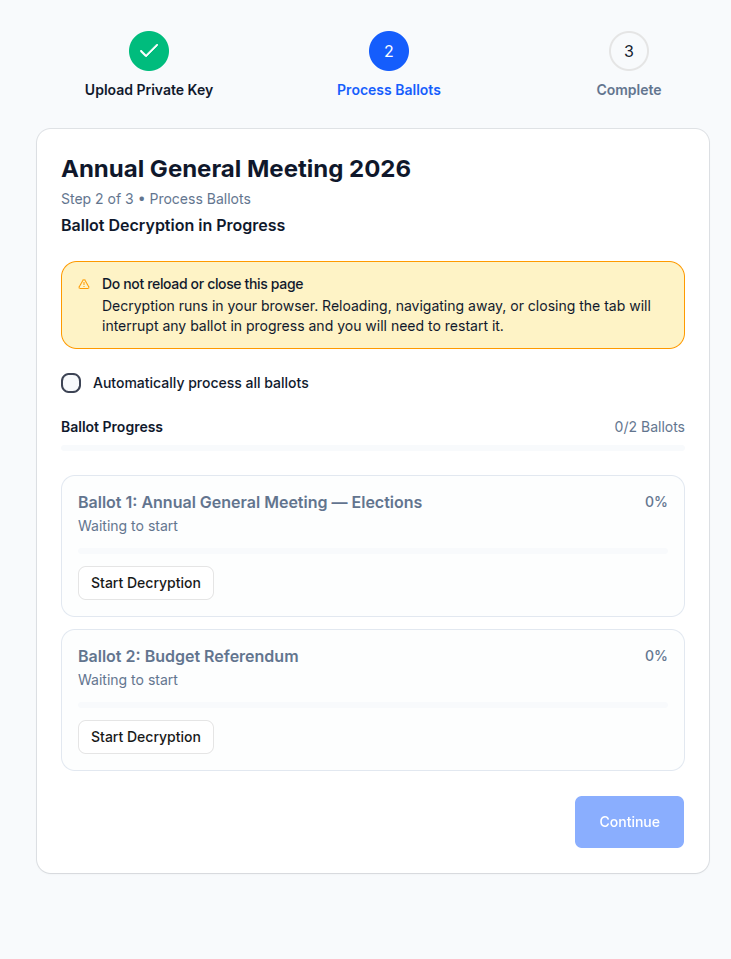
Manual vs automatic processing
You have two options for how to work through the ballot list:
Manual processing - Click Start Decryption on each ballot individually. The ballot processes and reaches 100%, you confirm, and then move on to the next one. This gives you clear visibility of each ballot's progress and lets you take short breaks between ballots if needed.
Automatic processing - Check the Automatically process all ballots option before starting. With this enabled, the system will process each ballot in sequence without requiring you to click between them. This is the more convenient option if you have multiple ballots to process and want to let the browser run through them unattended. If you choose this option, stay near your computer in case an issue arises with any individual ballot.
For most events, the automatic option is perfectly safe and will complete the full decryption without any intervention required.
What to expect during processing
Each ballot works through its encrypted vote batches in sequence. You will see a progress bar move from 0% toward 100%, with status updates as each batch is processed and submitted. The time this takes depends on the number of votes cast a ballot with hundreds of votes may take noticeably longer than one with only a few dozen.
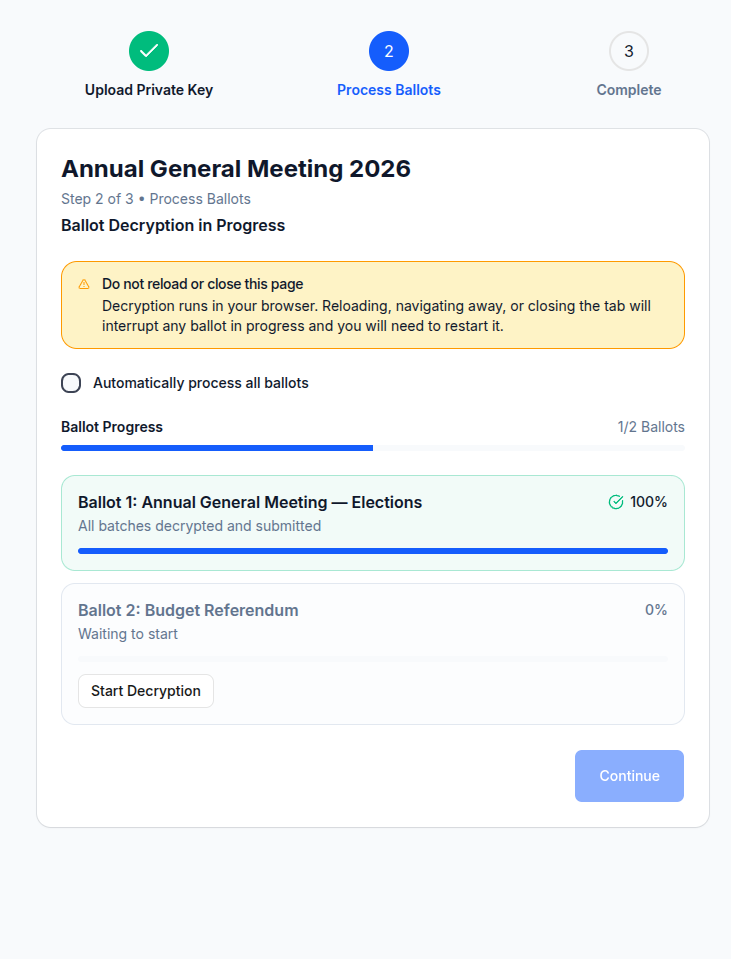
When a ballot completes, you will see:
All batches decrypted and submitted
This means your browser has successfully processed all encrypted vote batches for that ballot and submitted the partial decryption data to the Electobox server. Repeat for each remaining ballot, or let the automatic option handle them in sequence.
Once every ballot in the list shows 100% complete and the confirmation message, click Continue.
Step 3 Complete
The final page confirms that your part of the decryption process is done.
Decryption Complete
You have successfully contributed your share of the decryption for every ballot. Once the remaining trustees have done the same, the system will combine the partial decryptions and publish the final tally.
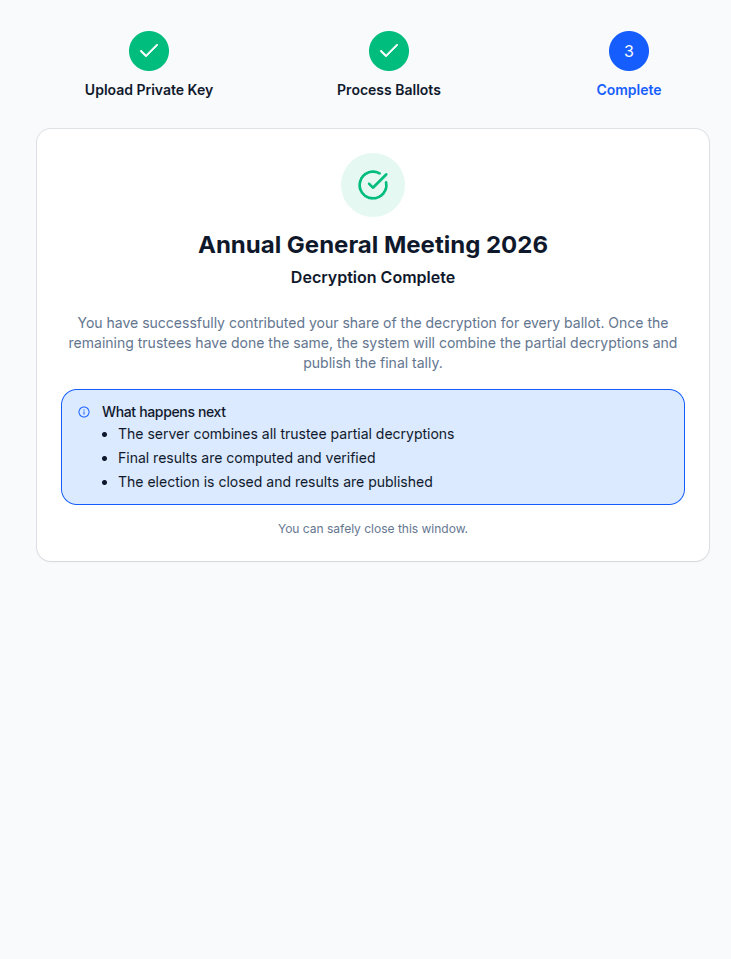
What happens next: The Electobox server waits for all remaining trustees to submit their partial decryptions Once every trustee has completed their action, the server combines all partial decryptions automatically The final vote totals are computed and verified The election is moved to Finished status and results are published and available to administrators
You do not need to do anything further. Your trustee duties for this election are complete. You can safely close this window.
If results seem to be taking a long time to appear, the most likely cause is that one or more other trustees have not yet completed their decryption. Your administrator can check the Trustee Decryption Progress table in the admin panel to see who is still outstanding.
Troubleshooting
I can't find my key file. - Start by checking your Documents folder, Downloads folder, and Desktop. Also check any USB drives you have access to. Try searching your computer for the filename trustee-key.json or electobox most operating systems have a system-wide file search that can scan all locations quickly. If you still cannot find the file, contact your administrator immediately. Without your key, the results cannot be produced.
Key file verification failed. - This means the file you uploaded does not match the public key registered for you in this election. The most likely causes are: you uploaded the wrong file (perhaps a key from a different election or a different trustee), the file was corrupted or partially downloaded, or the file was modified after download. Make sure you are uploading the exact trustee-key.json file you downloaded during the key generation step for this specific election. If you are certain you have the right file and verification still fails, contact your administrator.
A ballot keeps failing or showing an error. - Try clicking Start Decryption again on the failed ballot temporary network interruptions can cause a batch to fail, and retrying usually resolves it. If the same ballot consistently fails, check your internet connection and try again. If the problem persists, contact your administrator with details of the error message you are seeing.
My browser slowed down or froze during processing. - Decryption is computationally intensive and will use significant CPU resources. If your browser seems very slow, close all other tabs and applications and give it a few minutes to work through the processing. On older or lower-powered hardware, larger elections may take longer than expected. As long as the progress bar is moving, the process is working.
The link has expired. - Decryption links are valid for 14 days after the election closes. If your link has expired, contact your administrator and ask them to resend your action email from the Trustees section of the admin panel.
I completed decryption but results aren't showing yet. - Results are only published once every trustee has completed their decryption. Your administrator can see which trustees have completed and which are still outstanding in the admin panel. If you have finished and results are delayed, the most likely reason is that another trustee has not yet acted. Your administrator will need to follow up with them.