Generate your keys
Before voting begins, you will receive an email from Electobox with a secure link to complete your key setup. This is your first and most important task as a trustee. The key you generate here is what makes the entire encryption system work it is your personal contribution to securing the election, and it is the only thing that will allow you to participate in decrypting the results later.
The process takes about five minutes from start to finish. Read through this guide before you begin so you know what to expect at each step.
Use Google Chrome on a desktop or laptop. Close other tabs and applications before starting, and make sure you have a USB drive available to store your key backup. Do not refresh the page at any point during the process unless instructed to your key lives in browser memory during generation and refreshing will lose it.
Strong authentication
Before you can access the key setup, Electobox verifies your identity in two steps. This ensures that only you the intended trustee can generate the key associated with your trustee record.
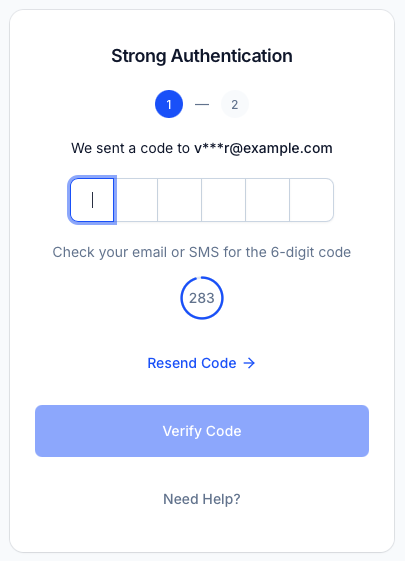
Step 1 One-time code
A 6-digit verification code is sent to your email address or phone number (whichever is registered in the system). Check for the message, enter the code in the field provided, and click Verify Code.
The code expires after a few minutes, so use it promptly. If you don't receive it within a minute or two, check your spam or junk folder. If it's not there, click Resend Code to generate a fresh one. Each time you resend, the previous code is invalidated.
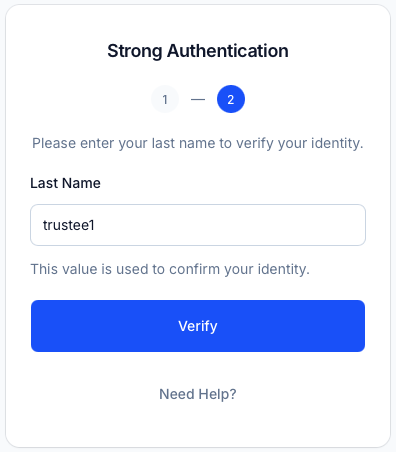
Step 2 Last name
After the code is verified, you are asked to confirm your identity by entering your last name as it is registered in the system. Type it exactly as it appears on your official identification matching capitalization is not required, but the spelling must be correct.
Click Verify to proceed.
Once both steps are complete, you are taken to the key setup flow.
Step 1 Overview
The first page of the key setup introduces your role and gives you a clear summary of what the process involves and what will be expected of you throughout the election.
Your responsibilities as trustee:
- Generate a unique cryptographic key pair on your device
- Securely store your private key in a safe location
- Verify that you can access your key when needed
- Use your key to decrypt election results after voting ends
Take a moment to read through this page. It also explains the overall sequence of what will happen next, so you know exactly what you are committing to before you begin.
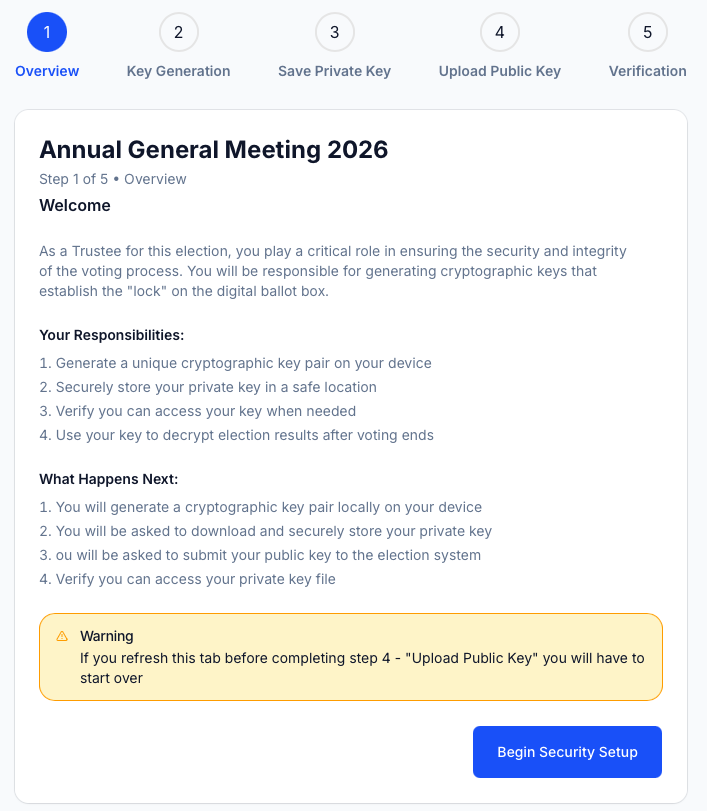
The steps you are about to complete:
- Your browser generates a key pair locally on your device
- You download and securely store your private key file
- You submit your public key to the election system
- You verify that you can access your private key file
If you refresh this tab before completing Step 4 "Upload Public Key" your public key will be lost from browser memory and you will have to start the entire process over. Do not refresh the page.
When you are ready, click Begin Security Setup.
Step 2 Key generation
Your browser generates a unique cryptographic key pair directly on your device. This happens locally nothing is sent to Electobox's servers during this step.
A cryptographic key pair consists of two mathematically linked keys that work together:
How key pairs work:
- Public key — This key is shared with the Electobox system. It is used to encrypt every vote cast during the election, combined with the public keys from all other trustees. Think of it as the lock.
- Private key — This key stays exclusively with you. It is required to perform your share of the decryption after the election closes. Think of it as your personal key to that lock and the only copy that exists.
Privacy Guarantee The key generation process happens entirely in your browser. Your private key is generated locally and is never transmitted to Electobox's servers at any point. No one at Electobox can access it.
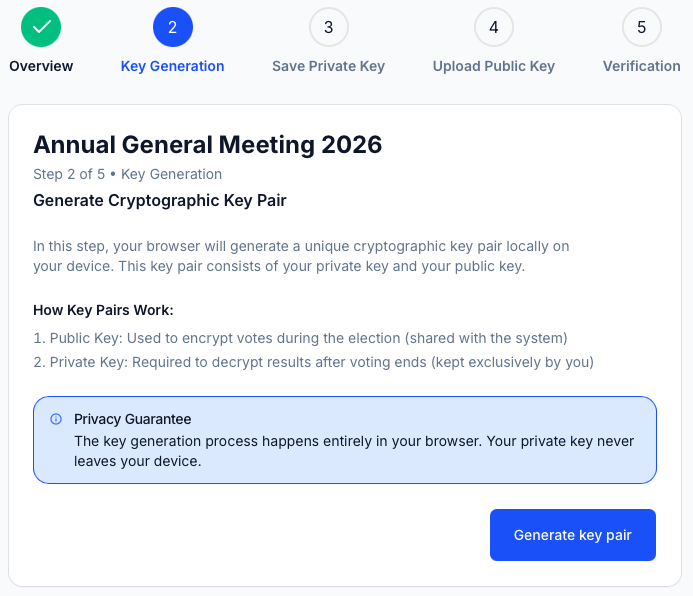
Click Generate key pair. The generation takes only a moment. You will see the page update once the key pair is ready, and you'll then be taken to the next step automatically.
Step 3 Save private key
Both keys have been generated and are ready. This is the most critical step in the entire setup process. You must download your private key file now this is the only opportunity you will have to download it.
The private key is not stored anywhere on Electobox's servers. Once you leave or refresh this page, the key exists only in the file you download. If you do not download it now and then close the browser, the key is gone and you will need to start the entire process over with a new link from your administrator.
Losing your private key makes decryption impossible. There is no recovery process, no backup held by Electobox, and no way to reconstruct the key. You are solely responsible for keeping this key secure and accessible from this point forward.
Before you download, take a moment to think about where you will store the file. The ideal approach is to have two locations ready:
Recommended security practices:
- Save the key to a specific folder on your computer that you will remember not just your Downloads folder, where files are easy to lose track of
- Copy the file to a USB drive immediately after downloading, and store the drive somewhere physically secure
- If possible, keep a second backup on a separate encrypted device
- Never share this file with anyone, and never email it to yourself in an unencrypted message
Check the acknowledgement box to confirm you understand your responsibility for the key, then click Download Private Key. Your browser will save a file named:
trustee-key.json
As soon as the download completes, open your Downloads folder, confirm the file is there, and move it to a permanent location. Do not leave it in Downloads and forget about it. You will need to upload this exact file from wherever you store it when the election closes and decryption begins. Weeks may pass between now and then, so store it somewhere you will be able to find it.
Step 4 Upload public key
Now that your private key is safely stored, your public key needs to be submitted to the Electobox system. The public key will be combined with those of all other trustees to form the encryption key that protects the votes during the election.
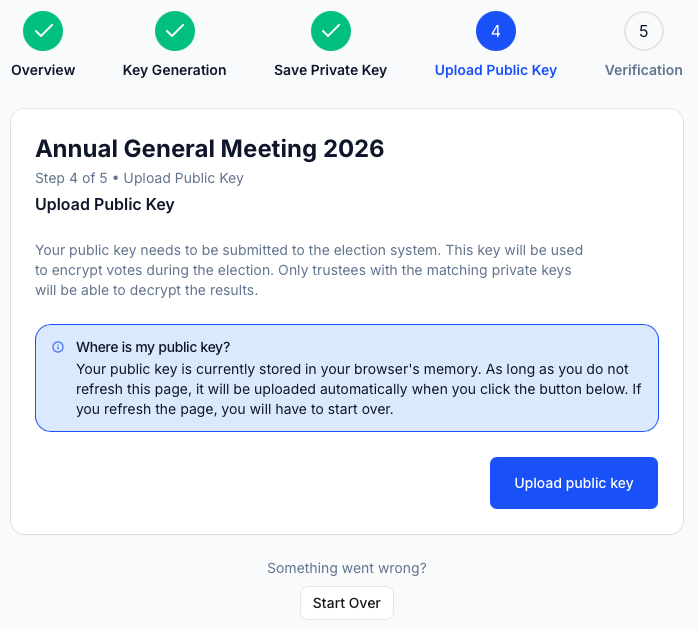
You do not need to locate a file for this step. Your public key is currently held in your browser's memory from the generation step, and it will be uploaded automatically when you click the button.
Where is my public key? Your public key is stored in your browser's memory from when it was generated. As long as you have not refreshed this page, it is still there and will be submitted automatically. If you have refreshed the page at any point since Step 2, the key is no longer in memory and you will need to start the process over.
Click Upload public key. The submission takes only a moment. Once successful, you will see confirmation that your public key has been registered in the system.
Step 5 Verification
The final step confirms that your private key is safely stored and accessible. You do this by re-uploading the key file you just downloaded, so the system can verify it cryptographically matches the public key it just received.
This step exists specifically to protect you and the election. If you complete setup without verifying and then discover later at the decryption stage that you can't find or access your key file, the election results will be stuck waiting. Verifying now, while you are still in the setup flow, gives you immediate confirmation that everything is in order.
Click to select or drag and drop your key file into the upload area. Navigate to wherever you saved the trustee-key.json file, select it, and click Verify.
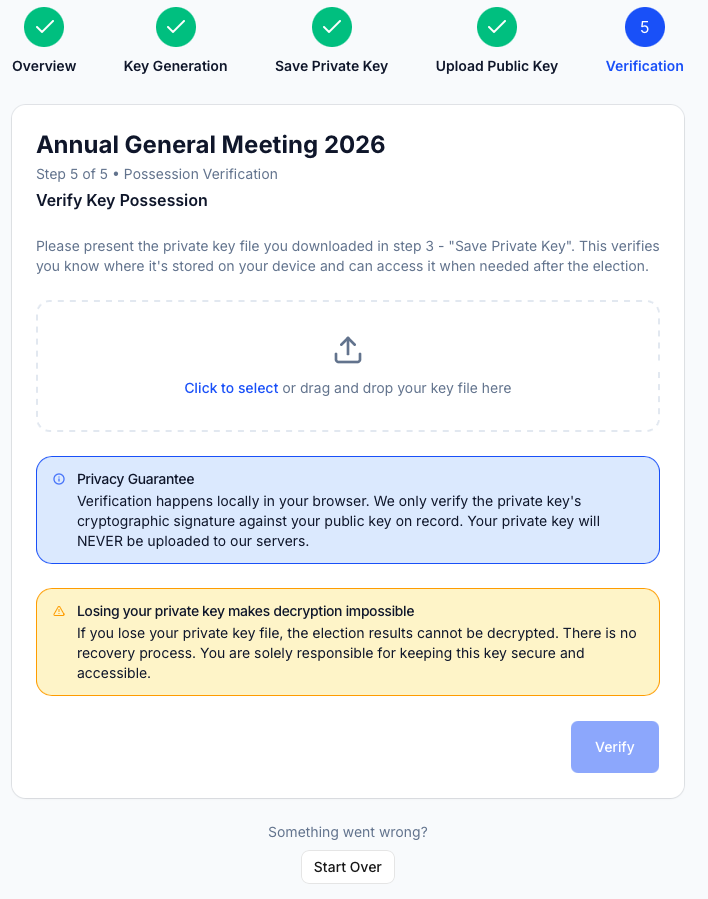
Privacy Guarantee — Verification happens entirely in your browser. The system checks the cryptographic signature of your private key against the public key on record. Your private key file is never uploaded to Electobox's servers during this step.
If the verification is successful, you will see:
Verification Successful — Your private key file matches the public key on record. You are all set.
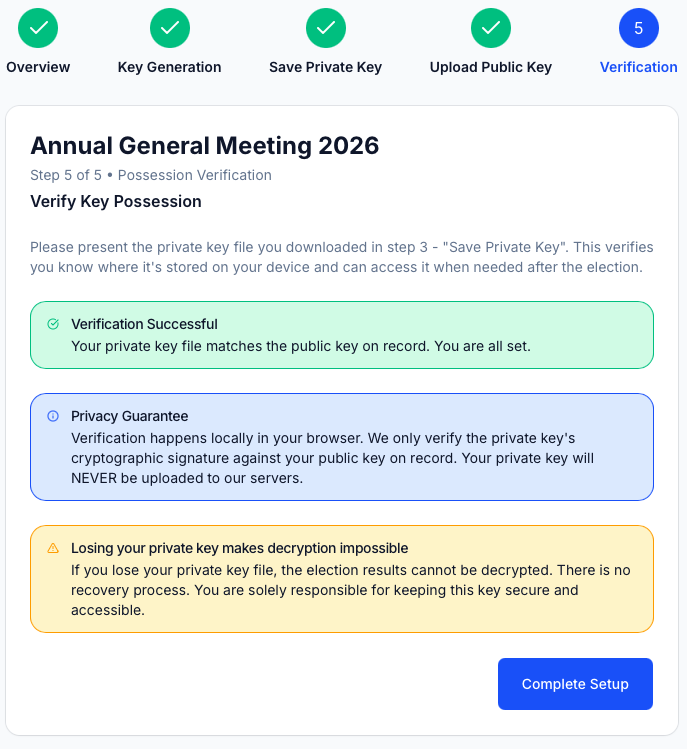
Click Complete Setup. Your key setup is now finished. You have generated your key pair, stored your private key, registered your public key with the system, and confirmed that you can access your key.
Keep your key file safe from this point on. You will need it again when the election closes and you receive your decryption email. That could be days or weeks from now, so make sure it is somewhere you will be able to find it.
Troubleshooting
I need to start over. If something went wrong at any point you refreshed the page, the upload failed, you're seeing an error you don't understand scroll to the bottom of the page and click Start Over. This will reset the process. Alternatively, contact your administrator, who can issue you a new link.
The one-time code didn't arrive. First, check your spam or junk folder automated emails sometimes end up there. If it's not there, click Resend Code on the page. Each time you resend, a new code is generated and the previous one becomes invalid. If codes consistently fail to arrive, contact your administrator to confirm the correct email address or phone number is registered for you.
The "Upload public key" step failed. Do not refresh the page. Your public key only exists in browser memory at this point refreshing will permanently lose it. If the upload failed due to a connection error, try clicking the button again. If it continues to fail, click Start Over and go through the process again from the beginning without refreshing.
Verification failed at Step 5. Make sure you are uploading the exact file that was downloaded in Step 3. The filename should be trustee-key.json. If you downloaded the file multiple times, make sure you're using the most recent version. If the error persists and you cannot identify the correct file, click Start Over or contact your administrator.
I accidentally deleted the file. Check your computer's Recycle Bin or Trash folder immediately. If the file is there, restore it, move it to a safe folder, and copy it to your USB drive right away. If the file is not in the Recycle Bin and you do not have a backup, contact your administrator you will need a new link and will need to go through the setup process again to generate a new key pair.
My link has expired. Key generation links are valid for 7 days from when they were issued. If you didn't act in time, contact your administrator and ask them to resend your action email. They can do this from the Trustees section of the admin panel.