Ballots
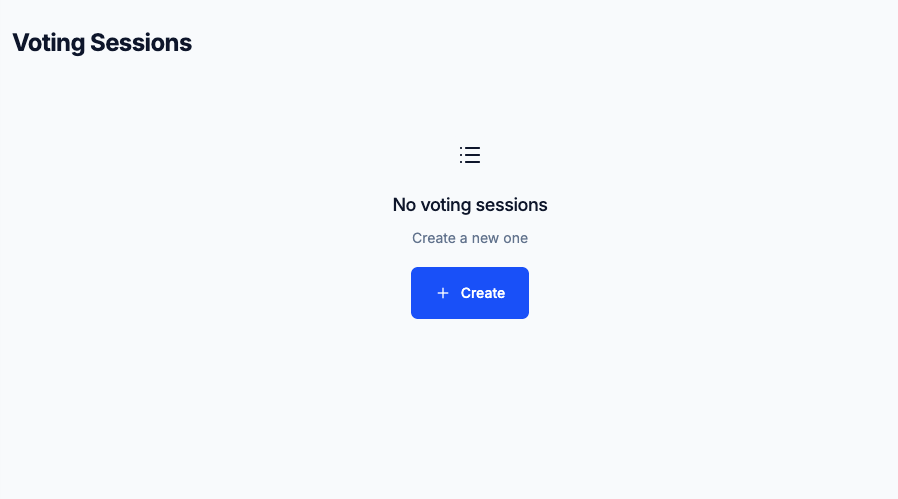
Click Ballots in the left sidebar. This is where you create and manage voting sessions and contests the heart of what participants will actually see and interact with when they cast their votes.
The Ballots section is structured around voting sessions. A voting session is a self-contained ballot that participants complete. Each session can contain one or more contests, which are the individual questions or elections within that ballot. For example, an annual general meeting might have a single session with three contests: a board election, a budget approval, and a motion on policy change. Alternatively, a large event with different membership classes might have several sessions, each with its own set of contests and restricted to a specific participant group.
One of the most important things to understand about ballots is that they lock the moment the election starts. Once voting is open, you cannot change contest names, add or remove candidates, adjust voting rules, or modify special vote options. This is by design it protects the integrity of the vote and ensures that what participants are voting on cannot be altered once ballots are being cast. Because of this, it's essential to build out and carefully review all your sessions and contests during the setup phase, well before you open voting.
If you realize a mistake after the election has started, your options are limited. For minor issues like a typo, you may need to accept it. For more serious errors a missing candidate, the wrong voting method you would need to close the election, which is a significant step that may require a restart. Take the time to get it right before starting.
Creating a voting session
To create a new voting session, click Create new voting session from the Ballots page. A small dialog will appear asking for two things: a name and an optional description.
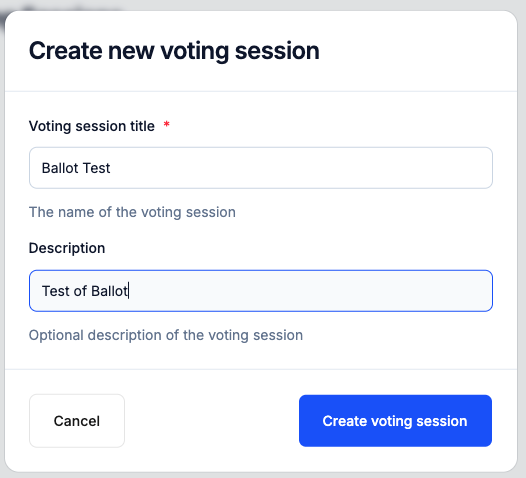
The name is what participants will see at the top of their ballot, so make it clear and specific. Instead of something generic like "Vote 1," use something descriptive like "Board of Directors Election" or "Annual Budget Approval 2025." The description is optional but useful if participants need context before they start voting for example, a brief explanation of the scope of the session or a reference to agenda item numbers.
Once you confirm, you are taken directly to the session configuration page. This page is divided into several distinct areas that you'll work through as you build out the ballot:
- General Information The session name and description you just entered, which you can still edit here at any time before the election starts.
- Ballot Settings Options that apply to the session as a whole, like special vote types, colour coding, and voting rights.
- Contests The list of individual questions or elections within this session.
- Ballot preview A live preview on the right side of the screen that updates in real time as you configure the session.
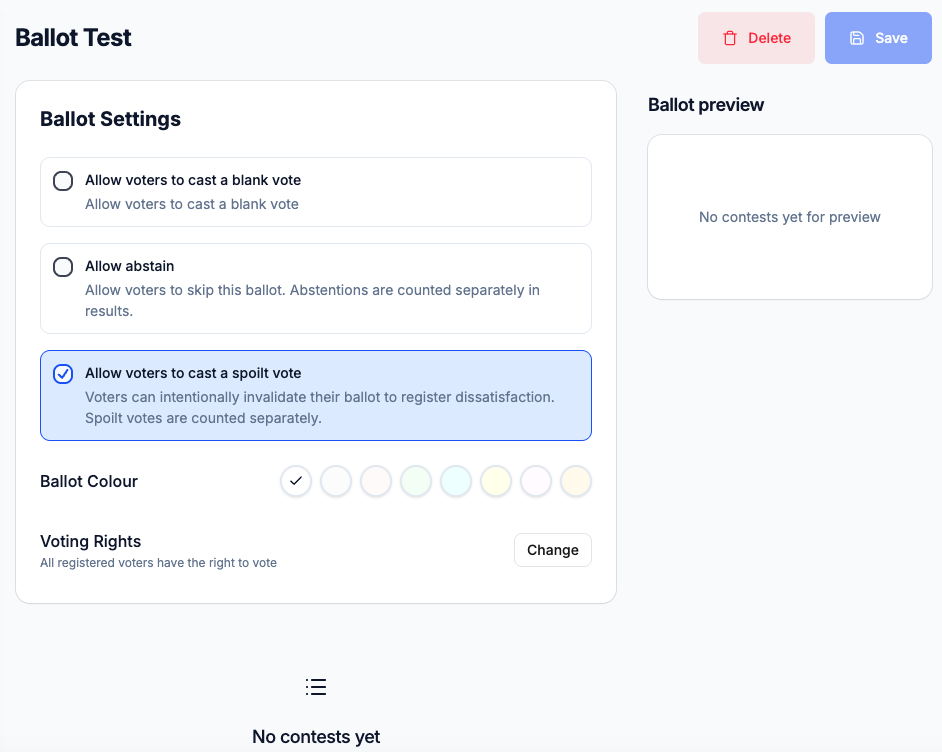
Work through each of these areas methodically before moving on. The ballot preview is your best tool for catching anything that looks wrong use it actively throughout configuration, not just as a final check.
Ballot settings
Ballot settings apply to the session as a whole rather than to individual contests. These are the first things to configure after creating a session, before you start adding contests.
Special vote options
Special vote options give participants alternatives to selecting a candidate. Depending on your organization's rules or the nature of the vote, you may be required to offer some of these options. Each type is tracked and reported separately in the results, so you'll have full visibility into how many voters used each option.
| Option | What it does |
|---|---|
| Allow blank vote | Voters can cast a blank vote no candidate selected |
| Allow abstain | Voters can skip this ballot entirely; abstentions are counted separately |
| Allow spoilt vote | Voters can intentionally invalidate their ballot to register dissatisfaction; spoilt votes are counted separately |
Understanding the distinction between these options matters. A blank vote means the voter actively chose not to select anyone, while still formally participating in the vote. A spoilt vote is a deliberate signal of dissatisfaction or protest the voter is saying they reject the options presented rather than simply having no preference. An abstention means the voter chose not to participate in this particular ballot at all, which is different in both meaning and effect from casting a blank or spoilt ballot.
These distinctions can be significant depending on your organization's rules. Some constitutions specify that abstentions do not count toward quorum, while blank votes do. Others require a motion to receive a certain percentage of valid votes cast, which may or may not include blanks. Review your organization's rules carefully before deciding which special options to enable.
Ballot colour
You can assign a colour to each voting session. This colour appears in the voter interface to visually distinguish sessions from one another. It's a small detail but a meaningful one when you have multiple sessions running at the same time for example, in a large conference where different groups are voting on different matters simultaneously. A colour-coded ballot is easier for participants to find and track at a glance. It also reduces the chance of a voter accidentally completing the wrong session.
There is no functional difference between colours it is purely a visual organizational aid for participants.
Voting rights
By default, every registered participant in the event has the right to vote in every session. In many elections this is exactly what you want, and you do not need to change anything here.
However, if your event has sessions intended only for specific groups for instance, a motion that only full members can vote on but not associate members, or a committee election restricted to a particular branch click Change to restrict voting rights. You will be able to select which voting groups are eligible for this session.
Getting this right matters: if the wrong participants are included in a session, the legitimacy of the result could be challenged. Double-check voting eligibility rules against your organization's bylaws before configuring this.
Contests
A contest is the actual question voters answer within a session the specific motion, election, or decision being put to a vote. A voting session can contain one contest or many, depending on how your event is structured. All contests in a session appear on the same ballot, so participants work through them in sequence before submitting.
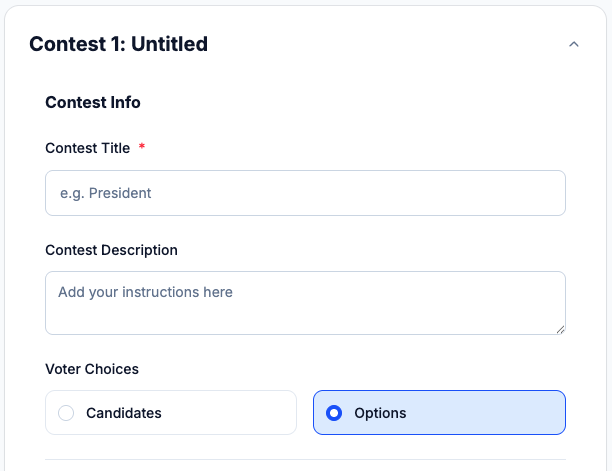
Click Add contest to create a new one. You can add as many contests as the session requires. Each contest you create has three sections to configure: contest info, voting rules, and candidates/options.
Contest info
This is the title and optional description of the question being asked. The title is what voters will see as the heading for this part of the ballot for example, "Election of Chairperson" or "Motion: Adopt the 2025 Strategic Plan."
The description field gives you space to provide additional context directly on the ballot. Use it to clarify the motion, reference relevant documents, summarize the background, or explain what a "Yes" vote means versus a "No" vote. Voters who aren't deeply familiar with every agenda item will appreciate having this context available without needing to refer back to separate materials.
Keep contest titles clear and unambiguous. Avoid insider shorthand or jargon that not all voters may be familiar with, and make sure the question being asked is unmistakable. Ambiguous wording on a ballot can cause confusion, generate complaints, and in serious cases call the validity of the result into question.
Voting rules
Voting rules define how votes are counted for this contest. This is one of the most consequential configuration choices you'll make, and it's worth thinking through carefully especially for elections where the outcome will have real consequences.
Plurality is the simplest and most familiar method. Voters select one or more candidates, and winners are determined by whoever receives the most votes. This method supports additional configuration: a seat count (for multi-seat elections where several candidates will be elected), minimum and maximum selection limits (forcing voters to pick at least two but no more than four candidates, for instance), and vote thresholds (a minimum percentage a candidate must reach in order to be elected at all).
For more complex elections where you want the result to better reflect voter preferences, several preferential and proportional methods are available:
| Method | How it works |
|---|---|
| IRV (Instant Runoff Voting) | The candidate with the fewest first-choice votes is eliminated each round; their votes transfer to the next preference until one candidate has a majority |
| STV (Single Transferable Vote) | A proportional version of IRV used when multiple seats are being filled |
| Borda count | Each ranking position is worth a set number of points; the candidate with the most points wins |
| Condorcet–Copeland | Each candidate is compared head-to-head against every other; the one who wins the most matchups wins the contest |
IRV is well suited to single-seat elections where you want the winner to have broad support rather than just a plurality. It prevents vote-splitting in races with multiple similar candidates and tends to produce a winner who is acceptable to most voters even if they weren't everyone's first choice. STV extends this logic to multi-seat elections and is widely used for committee and board elections where proportional representation across different viewpoints matters.
Borda count is useful when you want results that account for voter preferences across all candidates, not just the top choice. It tends to reward broadly acceptable candidates over more polarizing ones. Condorcet–Copeland identifies the candidate who would win in a direct one-on-one comparison against every other candidate it can surface a consensus winner that other methods might miss.
Score voting is a different approach: voters assign a numeric score to each candidate rather than ranking or selecting them. Results are calculated by summing or averaging scores across all voters. This is less common in formal organizational elections but can work well for preference surveys, advisory votes, or situations where you want to measure strength of preference rather than just first choice.
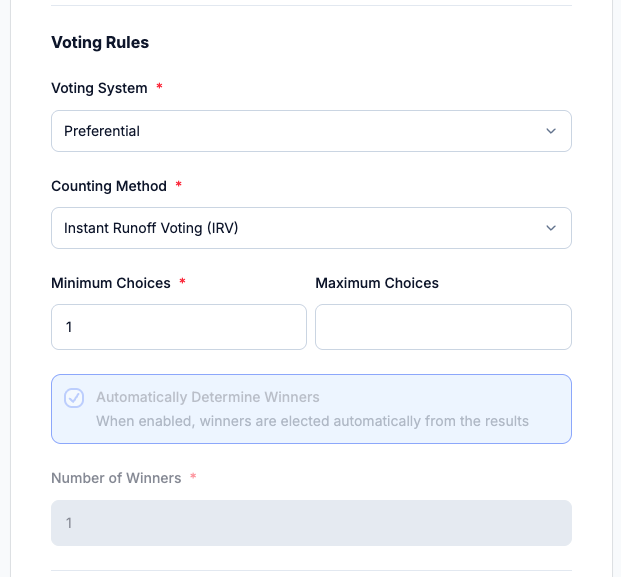
Traditional paper ballots with aggregate totals do not support preferential counting methods like IRV, STV, Borda count, or Condorcet. These methods require individual ballot-level data in order to calculate results, and paper tallies only capture totals. If your event uses traditional paper ballots for in-person voters, you must use Plurality or Score for any contest that includes in-person voting. Confirm your counting method before saving in-person settings.
If you are unsure which method is right for your election, check your organization's bylaws or standing rules. Many organizations specify a counting method, and using a different one could invalidate the result or expose it to legal challenge. When in doubt, Plurality is the safest choice for most standard elections.
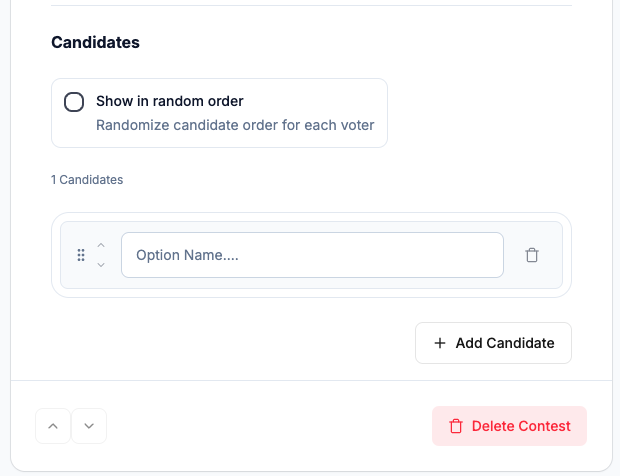
Candidates/Options
Once you have set the voting rules, add the candidates or options that voters will choose from. Each contest starts with a single empty candidate slot. Click to enter the candidate's name and any additional details, then add more slots as needed until all candidates are listed.
For motion-style contests Yes/No votes, approve/reject decisions, or selections from a list of options the "candidates" are simply your choices. Label them clearly and consistently. If you use "Yes" and "No" for one contest, don't switch to "Approve" and "Reject" for the next unless there's a good reason, as inconsistency can confuse voters.
Make sure every candidate name is spelled correctly and formatted consistently before saving. Check accents, hyphens, and any post-nominal titles. Once the election starts, this cannot be changed.
Ballot preview
As you build out the session, a live Ballot preview updates in real time on the right side of the screen. This shows you exactly what voters will see when they open their ballot the session name, any special vote options enabled, and all contests with their candidates laid out in the order they will appear.
Use the ballot preview actively as you work, not just as a final check at the end. Verify that contest titles are readable and unambiguous, that all candidates are listed and spelled correctly, that special vote options appear where expected, and that the overall flow of the ballot makes sense from a voter's perspective.
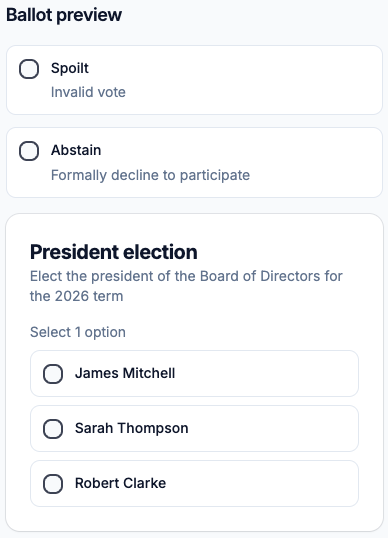
Before you consider setup complete, do a thorough review pass through the ballot preview ideally with another person who can look at it fresh. It's easy to miss errors when you've been configuring the same screens for a while, and a second set of eyes often catches things that are obvious once pointed out.
After the election closes
When voting ends, the focus shifts from setup and management to counting and results. The Ballots page updates to reflect the post-election state, and the most important element you'll see is the Trustee Decryption Progress table near the top of the page.
This table lists every trustee and shows their decryption status across all voting sessions whether their contribution is marked Complete, Counting, or Awaiting. Because Electobox uses split-key cryptographic encryption, the results cannot be decrypted until every single trustee has submitted their partial decryption key. If any trustee is still showing as Awaiting, you'll need to follow up with them directly. Their action email contains a link that is valid for 14 days after the election closes, so there is time but don't wait too long, as trustees can sometimes miss emails or forget.
Once all trustees have completed their action, the system automatically combines the partial decryptions to reconstruct the full decryption key and produce the final results. There is nothing further you need to do at this point the process is automatic.
Each session card on the Ballots page shows its current stage: Draft, Printing, or Ready. A session moves to Ready once decryption is complete and results are available to view.
Sessions can be cancelled if a motion is formally withdrawn before counting begins. A cancelled session will not produce results and will be clearly marked as cancelled in the interface and in any exports.
Uploading in-person results (hybrid events)
For hybrid events that use traditional paper ballots at the polling station, in-person vote totals need to be entered into Electobox manually after the election closes. The online votes are already stored in encrypted form and will be processed automatically this manual step is only required to bring in the paper ballot totals so the system can combine both channels into a single, unified final result.
Click Upload In-Person Results on the relevant ballot to open the upload screen.
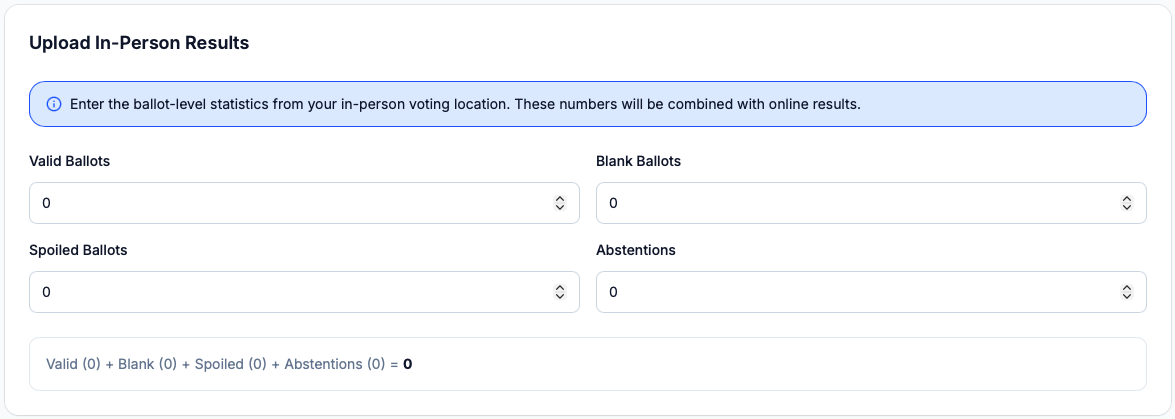
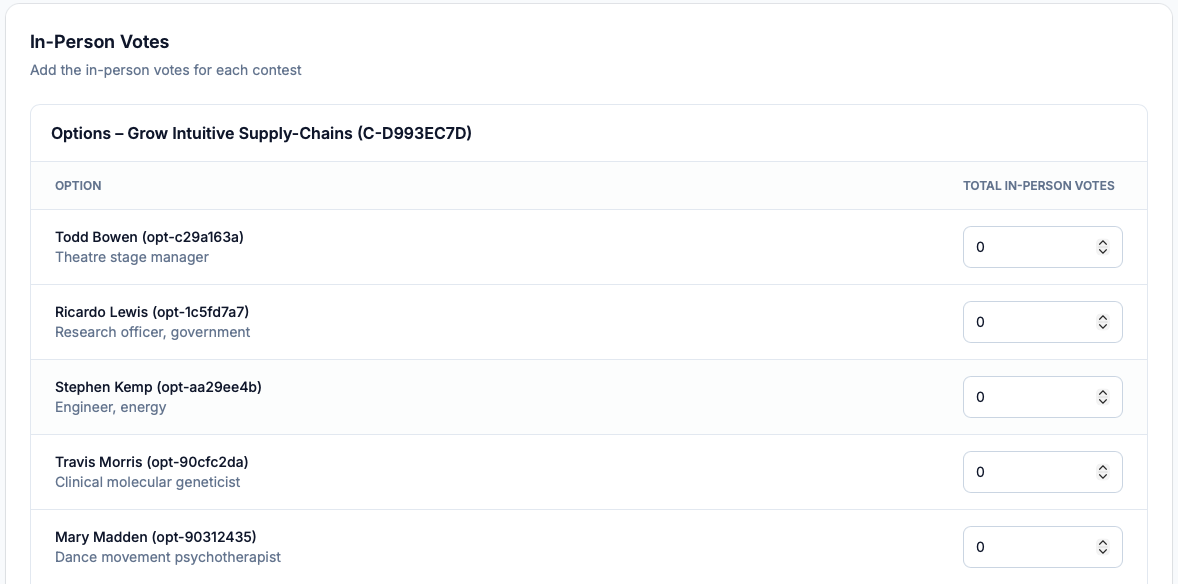
Work from your official polling station records for this step. The figures you enter here will be combined with the encrypted online results to produce the official outcome, so accuracy is critical. If possible, have a second person check your entries against the paper records before submitting.
The upload screen is divided into two sections:
Participant information
Start by entering the overall participation figures from the polling station.
| Field | What to enter |
|---|---|
| Total In-Person Ballots Cast | The total number of paper ballots submitted at the polling station |
| Blank Ballots | The number of ballots cast with no selection |
| Expected Valid Votes | Calculated automatically: Total Cast − Blank − Spoiled |
The Expected Valid Votes field is calculated automatically as a cross-check. If your manually entered figures don't reconcile correctly, this field will make the discrepancy visible before you submit, giving you a chance to catch and fix errors in your paper records.
In-Person Votes
Below the participation summary, you'll find a field for each candidate in each contest. Enter the vote count as recorded on your official tally sheets. Candidates are grouped by contest and, where applicable, by party, so you can work through them systematically.
Take your time with this step. It is better to go slowly and verify each figure than to rush and submit incorrect data. Once you are satisfied that all figures are correct, click Save as Draft to save your progress without finalizing useful if you need to step away or verify some figures or click Save to submit the results. Once submitted, the system combines the in-person totals with the online encrypted results to produce the final combined tally.
Ballot results
Once voting closes and all trustees complete their decryption, each ballot has a dedicated results page. Click on any ballot from the Ballots page to access it. The results page is organized into several sections, each providing a different view of the outcome.
Ballot statistics
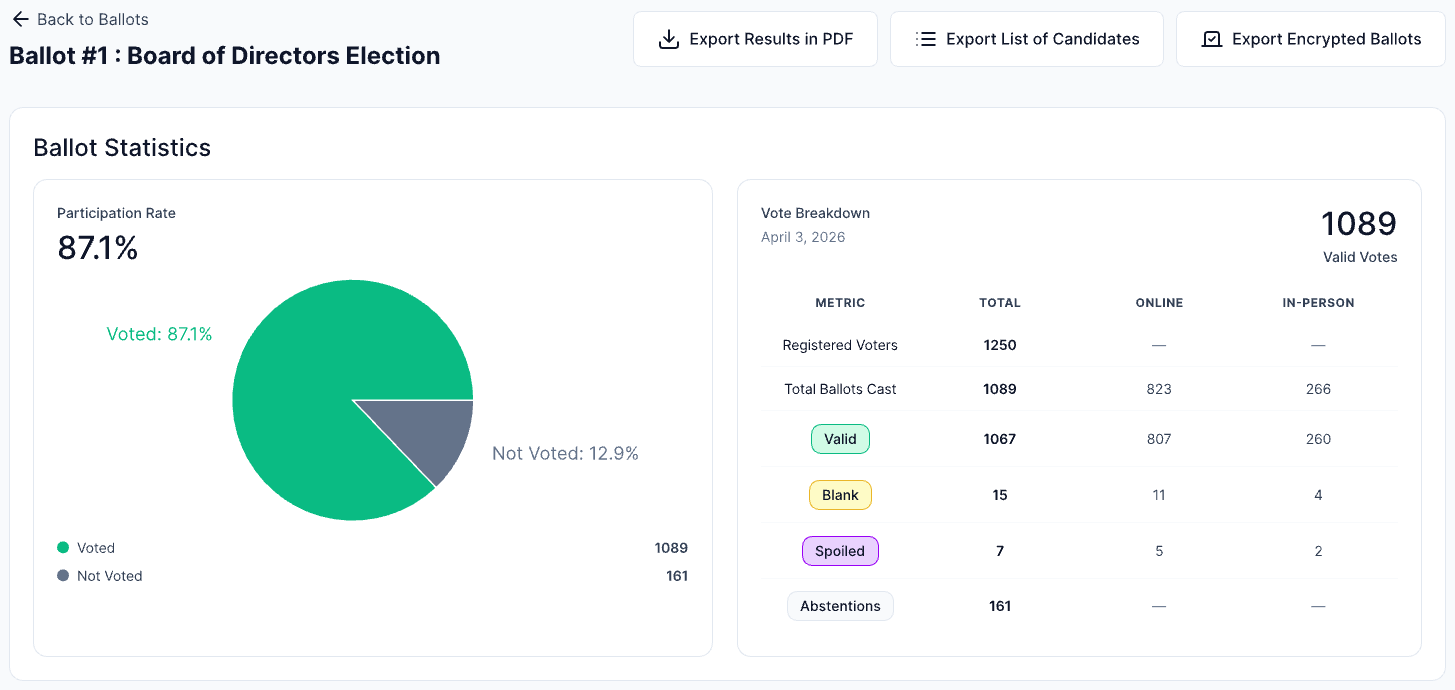
At the top of the results page is a participation summary. This includes a pie chart showing the breakdown of how ballots were cast online versus in-person and the split between valid votes, blank votes, abstentions, and spoilt ballots. A summary table below the chart provides the exact figures for each category, split by channel. This gives you a clear picture of turnout and participation quality before you look at the individual contest outcomes.
Contest Results
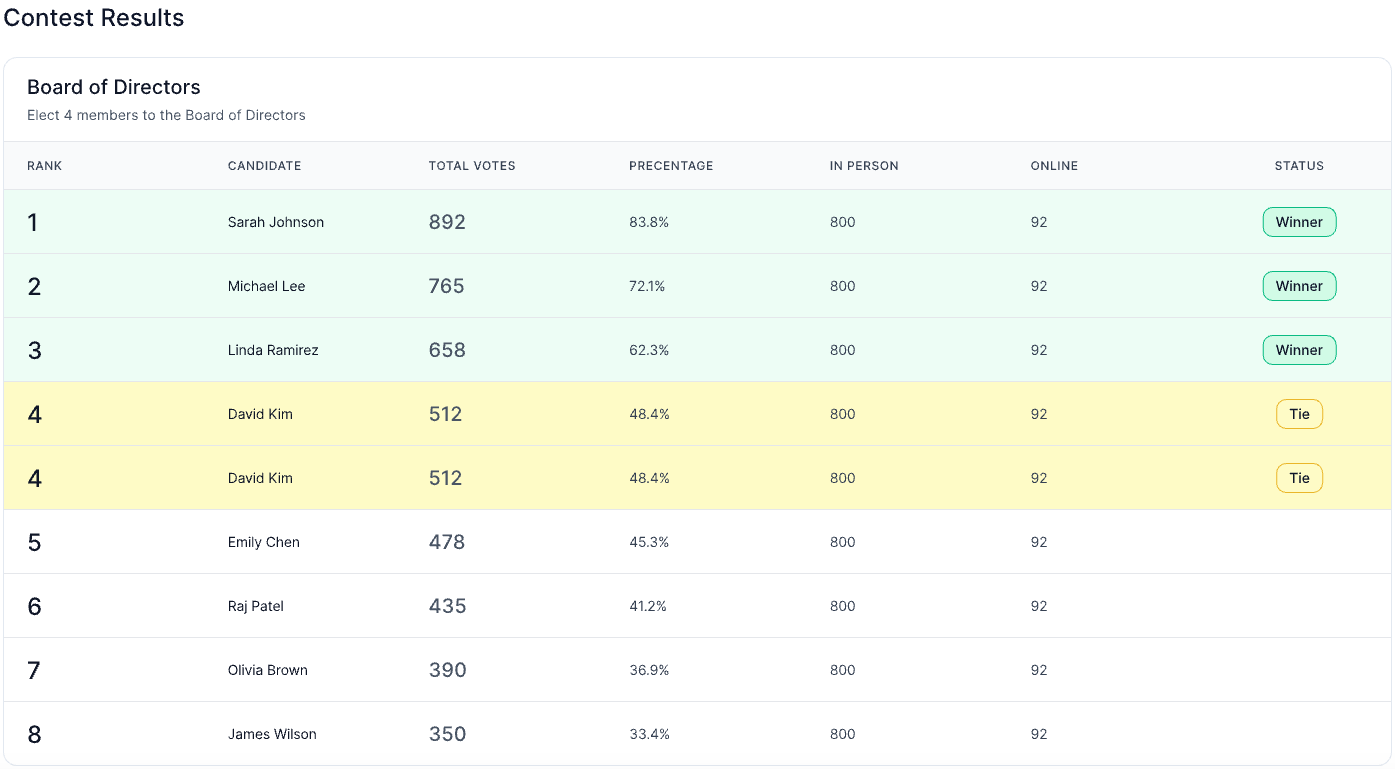
Each contest has its own results table showing every candidate or option, ranked by total votes received. The table includes the following columns:
| Column | What it shows |
|---|---|
| Rank | The candidate's final position, determined by total votes received. Candidates with equal vote counts share the same rank. |
| Candidate | The candidate's name and their unique option identifier |
| Total Votes | The combined vote count across both channels |
| Percentage | The candidate's share of valid votes cast |
| In Person | Votes received through the in-person polling station channel |
| Online | Votes received through the online voting channel |
Exports
Three exports are available from the top of the results page, intended for record keeping, official reporting, and independent verification.
| Export | What it contains |
|---|---|
| Export Results in PDF | Official results report for distribution and record keeping |
| Export List of Candidates | Full candidate list with vote counts and rankings |
| Export Encrypted Ballots | Anonymized encrypted ballot data for independent audit |
The PDF results report is the document you will typically share with members, distribute to stakeholders, or retain in your official records. It presents the full results clearly and includes participation statistics alongside contest outcomes in a format suitable for formal use.
The candidate list export is a structured spreadsheet of all candidates with their final vote tallies. This is useful for your own internal records, for sharing with candidates directly, or for feeding into other reporting.
The encrypted ballots export is intended for technical audit purposes. It contains the anonymized encrypted ballot data that an independent auditor can use to verify the integrity of the count without being able to identify how any individual voted. This is a core part of Electobox's end-to-end verifiability any technically capable party can use this file to confirm that the declared result is mathematically correct and that no votes have been altered or omitted.