Trustees
Click Trustees in the left sidebar to manage the people responsible for securing and decrypting your election results. Trustees are electoral committee members who each hold one portion of the cryptographic key needed to decrypt the results. This split key design means no single person can access the vote data alone, and neither can Electobox itself. Every trustee must participate for results to be produced. If even one key is missing, the final tally cannot be revealed.
This architecture is deliberate. It distributes the power to unlock results across multiple independent people, which means the secrecy of your election does not depend on trusting any single individual or organization. As administrator, your responsibility is to select trustees carefully, make sure they complete their actions on time, and follow up promptly if anyone falls behind.
Choosing your trustees
Before you add anyone to the Trustees list, it is worth thinking carefully about who to appoint. The practical requirements for a trustee are straightforward: they need a working email address, access to a computer with a modern browser, and the ability to save and store a file securely. They do not need any technical background. The browser guides them through every step.
What matters more than technical ability is reliability and availability. A trustee who cannot be reached when decryption needs to happen will hold up the entire results process, since every trustee must act before any results can be published. Choose people who are responsive to email, who you know will be reachable in the days after the election closes, and who understand the responsibility they are accepting.
It is also worth confirming with each trustee before you add them that they are willing to take on the role, that they understand they will be contacted at two points during the election, and that they have somewhere safe to store their private key file. A brief conversation beforehand prevents a lot of chasing later.
Adding trustees
To add a new trustee, click Add Trustee and fill in their details. You will need their full name and a working email address. Electobox communicates with trustees entirely by email throughout the process, so the email address must be correct and actively monitored by the trustee.
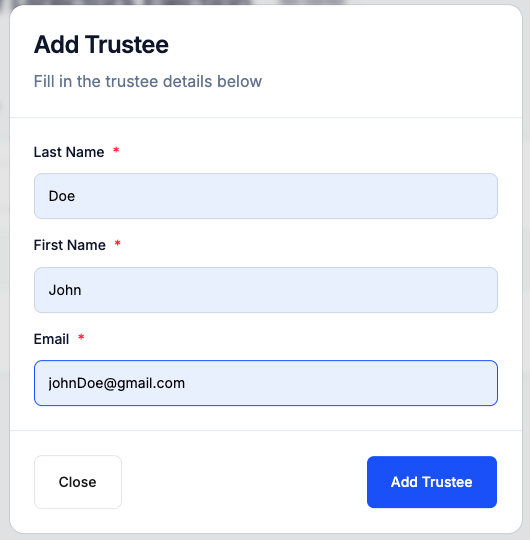
| Field | Notes |
|---|---|
| Last name | Required |
| First name | Required |
| Required — this is where all action emails are sent |
Double check the email address before confirming. A typo here means the trustee will not receive their action emails, and you may not discover this until the election is already underway. If you add a trustee with an incorrect email, you will need to reset their record and re add them with the correct address, which also resets any progress they had made.
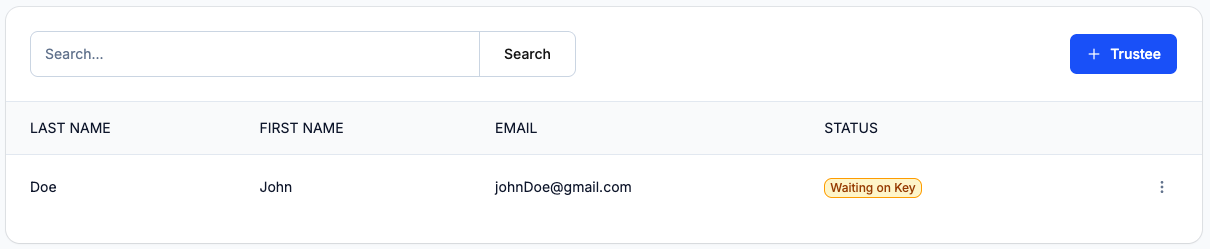
Click Add Trustee to confirm. The trustee will immediately appear in the list with a status of Waiting on Key, and their first action email will be sent automatically. You do not need to do anything else to initiate the process on their end.
Trustee statuses
The Trustees page gives you a live view of where each trustee is in the setup and decryption process. Each trustee moves through a series of statuses as they complete their required actions. Monitoring these statuses is the main way you track readiness before the election opens and progress during the decryption phase after it closes.
| Status | Meaning |
|---|---|
| Waiting on Key | Trustee has been added but has not completed Action 1 yet |
| Key generated | Action 1 complete — key pair created and downloaded |
| Key verified | Action 2 complete — key possession confirmed |
| Decryption complete | Action 3 complete — partial decryption submitted |
The status column is your primary indicator of whether the election is on track. All trustees must reach Key verified before you can open voting. Any trustee stuck at Waiting on Key or Key generated is a potential blocker, and you should follow up with them directly rather than waiting to see if they act on their own.
A good practice is to check the Trustees page a day or two after adding trustees, and again a day or two before you plan to open the election. This gives you time to chase anyone who has not acted and to resend emails if needed, without the pressure of a looming start time.
Trustee actions
Electobox handles trustee communication automatically. Each trustee receives an email when their action is needed, and all steps are completed in the trustee's browser without any software installation or account creation required. The private key is generated and stored locally on the trustee's own device and never transmitted to Electobox's servers at any point.
From your perspective as administrator, the three trustee actions map to three phases of the election lifecycle:
| Action | When | What the trustee does |
|---|---|---|
| Action 1 — Generate key pair | Before voting begins | Generates a cryptographic key pair in their browser, downloads the private key file, and registers the public key with the system |
| Action 2 — Verify key possession | Shortly after Action 1 | Re uploads their private key file to confirm they have it saved and accessible |
| Action 3 — Partial decryption | After the election closes | Uploads their private key and uses it to process their share of the encrypted ballots |
Action 1 and Action 2 links are valid for 7 days from the time they are issued. Action 3 links are valid for 14 days. If a trustee's link expires before they complete the step, you can resend a fresh link from the trustee management menu at any time.
All trustees must complete Actions 1 and 2 before you can open the election. This is enforced by the system and cannot be bypassed. Once voting closes, all trustees must complete Action 3 before the final results can be tallied and published. There is no way to produce partial results or work around a missing trustee contribution at the decryption stage.
Managing trustees
Click ⋮ next to any trustee's name to open their management options. This menu is where you handle the day to day administration of your trustee roster throughout the election lifecycle.
Resend action email sends a fresh copy of whatever action email the trustee currently needs. Use this if a trustee says they never received the original email, if their link has expired, or if they accidentally deleted the message. Each time you resend, a new link is generated and the previous one is invalidated, so there is no risk of confusion between an old link and a new one.
Reset key clears the trustee's current key setup and returns their status to Waiting on Key, triggering a fresh Action 1 email. Use this if a trustee made an error during key generation and needs to start over, or if they have lost their private key file before the election has started. After a reset, they go through the full key generation process again from the beginning.
A trustee's key cannot be reset after the election starts. Once voting opens, each trustee's public key becomes part of the active encryption used to protect every ballot cast. Resetting a key at that point would make it impossible to decrypt the results. If a trustee loses their private key after voting has begun, contact Electobox support immediately. Do not attempt to reset the key yourself.
Before the election opens
The period between adding trustees and opening the election is when most trustee administration happens. Here is what to watch for:
Trustees sometimes miss their first email, particularly if it lands in spam. If a trustee's status has not moved off Waiting on Key within a day or two of being added, resend the email and follow up directly to let them know it is coming. It is much easier to sort out email delivery issues before the election is under pressure than during the voting window.
If a trustee reaches Key generated but does not progress to Key verified, they likely completed the key generation but forgot to upload the verification file, or closed the browser before finishing the final step. Resending their action email will give them a fresh link to complete the verification.
Once all trustees are showing Key verified, you are clear to open the election. The trustee setup is complete and no further trustee action is needed until after voting closes.
After the election closes
When voting ends, the Trustees page adds a decryption progress view showing each trustee's status on Action 3. Trustees receive their decryption email automatically when the election closes. Your job is to monitor progress and follow up with anyone who has not acted within a reasonable timeframe.
Results cannot be published until every trustee reaches Decryption complete. If a trustee is slow to respond, resend their action email and reach out to them directly. If a trustee is genuinely unreachable or unable to act within the 14 day window, contact Electobox support as early as possible. The sooner you raise the issue, the more options will be available.